
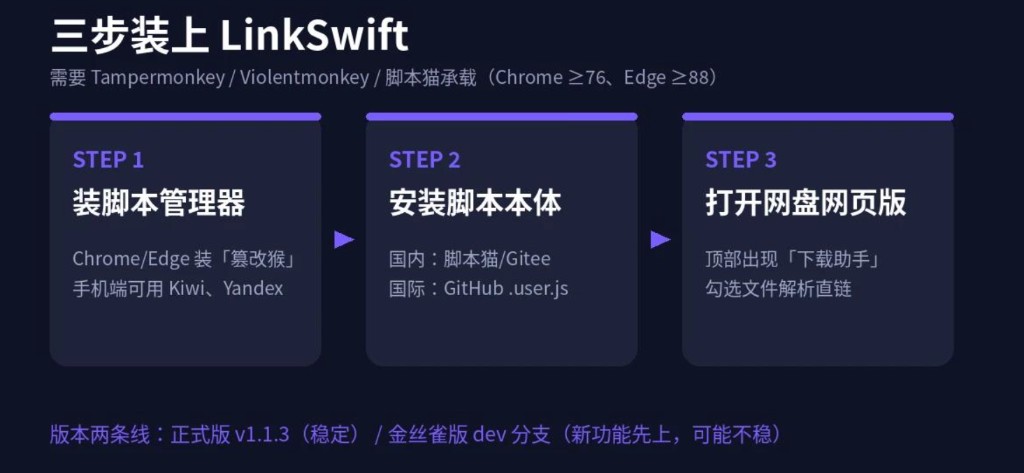
Cloud drive web downloads often stick you with the browser’s slow lane. LinkSwift (hmjz100/LinkSwift on GitHub) is a Tampermonkey userscript maintained from the classic “cloud direct-link helper”: while you are logged in on Baidu Netdisk, Aliyun Drive, Quark, Tianyi, China Mobile Cloud, Xunlei, UC, 123pan, and similar pages, it calls public APIs to fetch download URLs you can hand to IDM, Aria2, Motrix, or copy as plain links. This is a Chrome / Edge from-scratch guide—Tampermonkey first, then LinkSwift, then “light up” the helper on the drive site. No backend changes; everything runs locally in the browser.

What LinkSwift is (not a “speed hack”)
LinkSwift uses JavaScript in the current tab to call each provider’s public web/API endpoints and produce time-limited download URLs for tools you already use. The official README states clearly: no promise to break speed limits; throughput depends on account tier, provider policy, and your network. Install only from channels the author lists—GitHub, Gitee, ScriptCat, etc.—not repacked “accelerator” bundles.
Use responsibly
Download only files you may access; links expire—fetch again; some drives require saving a share into your own drive before a link works.
Before you install
- Chromium Chrome (≥76) or Edge (≥88), logged into the target drive in the browser.
- Access to extension stores; if GitHub is slow, use the Gitee mirror of the same
.user.js. - (Optional) IDM, Aria2, or Motrix on the machine that will receive the download.
Chrome: install Tampermonkey
- Open the Chrome Web Store Tampermonkey listing, click “Add to Chrome”, and accept permissions.
- Confirm the monkey icon in the toolbar; open “Dashboard” and ensure the extension is on.
- If the store is blocked: on
chrome://extensionsenable Developer mode and install a trusted .crx offline (store build OR offline—not random clones).
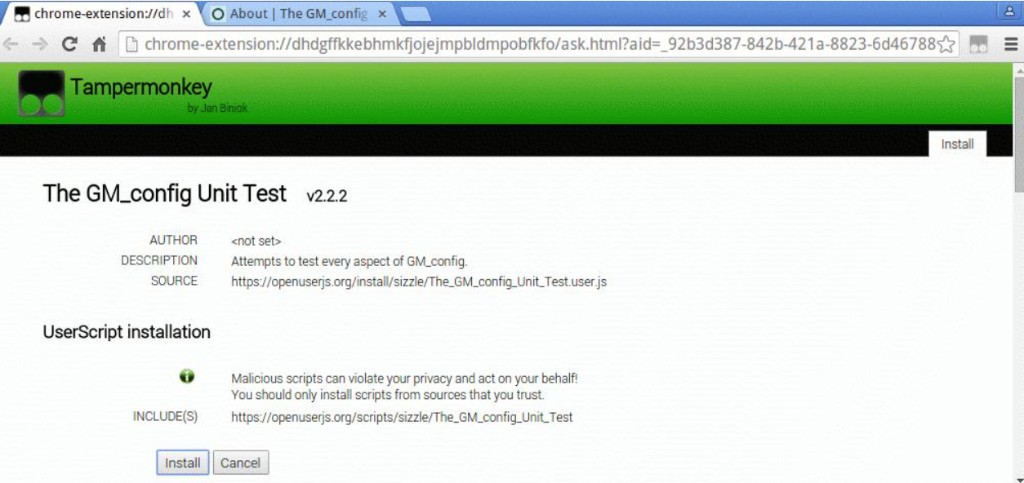
Edge: install Tampermonkey
- Open Microsoft Edge Add-ons – Tampermonkey and click Get.
- On
edge://extensionsconfirm Tampermonkey is enabled; some builds expose an “allow user scripts” toggle.
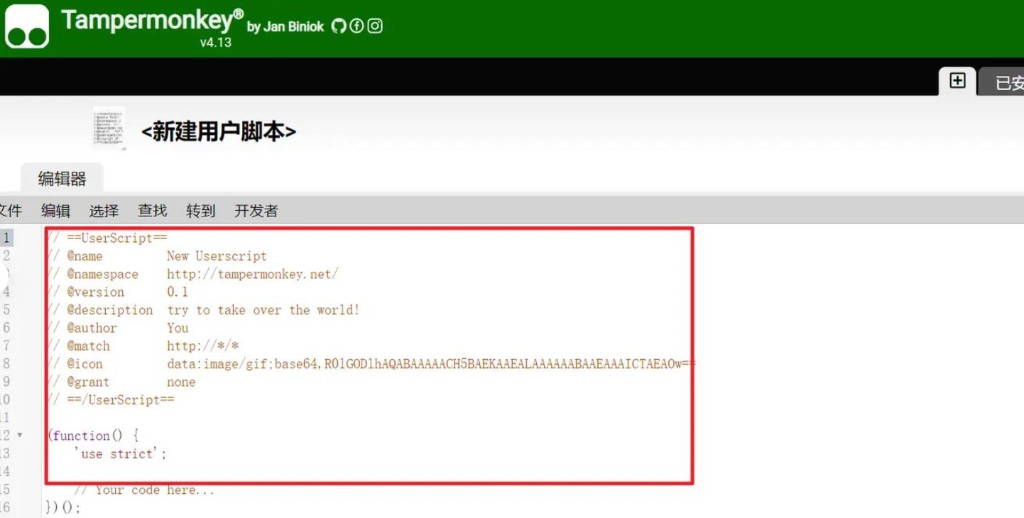
Install the LinkSwift userscript
Pick a stable install URL (Tampermonkey should open an install tab):
- GitHub: (改)网盘直链下载助手.user.js
- Gitee: same raw file
- ScriptCat: LinkSwift.user.js
Click Install in Tampermonkey’s dialog:
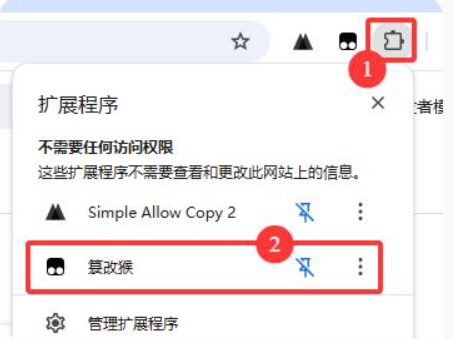
In Tampermonkey Dashboard, ensure LinkSwift is enabled:
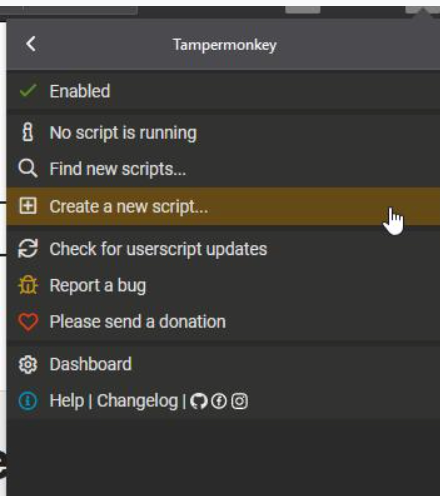
Light up the helper and get direct links
- Open a supported drive web site while logged in (e.g. pan.baidu.com).
- Click “tap to light up”; the control becomes “download assistant” (wording varies by drive).
- Select files, open the assistant, then choose get direct link, copy URL, or send to Aria2 / IDM.
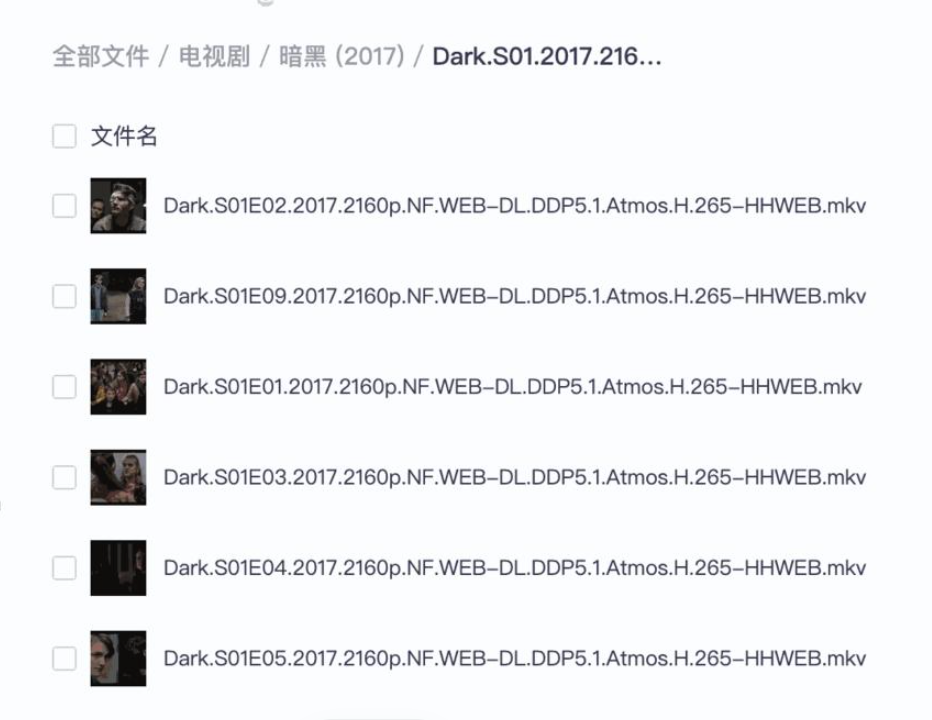
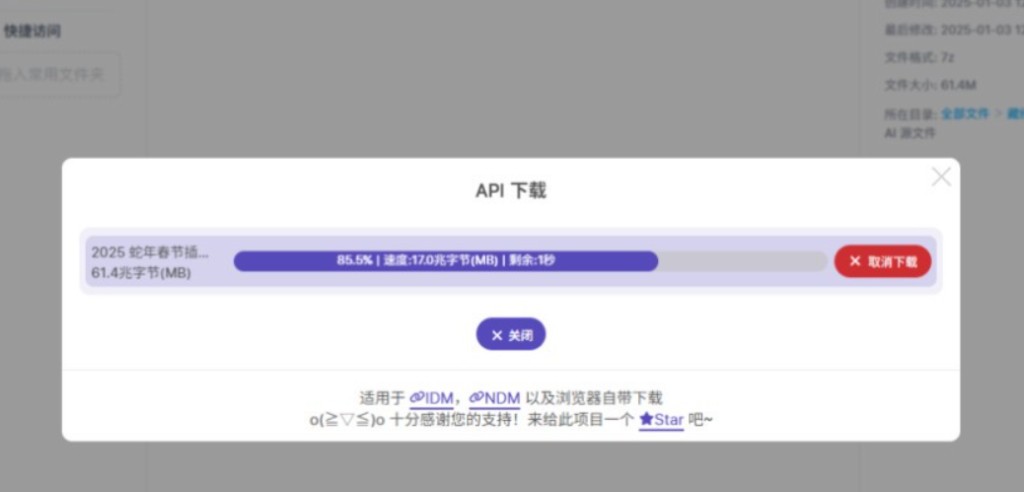
Optional: IDM / Aria2
In assistant settings, set local Aria2 RPC or IDM listener values (menu label may be “assistant settings”). For IDM, copy the extension client id from extension details into the script config. Plain browser downloads from copied links still follow provider limits.
FAQ
No button on the drive page?
Enable Tampermonkey and LinkSwift, hard-refresh, check domain support, disable conflicting drive scripts.
Copied link fails?
Expired link, missing Referer/Cookie session, or file not saved to your drive—regenerate and use IDM/Aria2 as documented.
Same script on Edge and Chrome?
Yes—install Tampermonkey on each; LinkSwift URL is the same; settings stay per browser.
Relation to Zilmac cloud Mac?
No backend tie-in. Install the same way on a cloud Mac browser session; large files still land where your downloader runs.
Summary: Tampermonkey on Chrome or Edge → official LinkSwift .user.js → light up “download assistant” on the drive site → select files for direct links. Follow provider terms; deploying static sites needs no backend changes, same as LinkSwift itself.